Rechercher dans ce blog

Sunday, June 5, 2022

How to use Quick Notes on iPad? - Pocketnow

iPad mini 2021 Source: Pocketnow video
CONTENTS CLOSE

The iPad is a tool that makes capturing data a convenient affair, and to do it has a host of applications that help compile information. Still, with the last few updates, Apple has been bolstering its in-house options with features that promote productivity and ease of use. Quick Notes on iPadOS is one such element.

Quick Notes can help jot down information instantly and offer a lot of conveniences, especially if you're planning on working your way back to a particular website while conducting research for work. If this nifty little feature has piqued your interest, here is a guide on activating Quick Note on your iPad.

How to enable Quick Notes on iPad?

To enable Quick Notes on iPad, open Settings and follow the steps listed below.
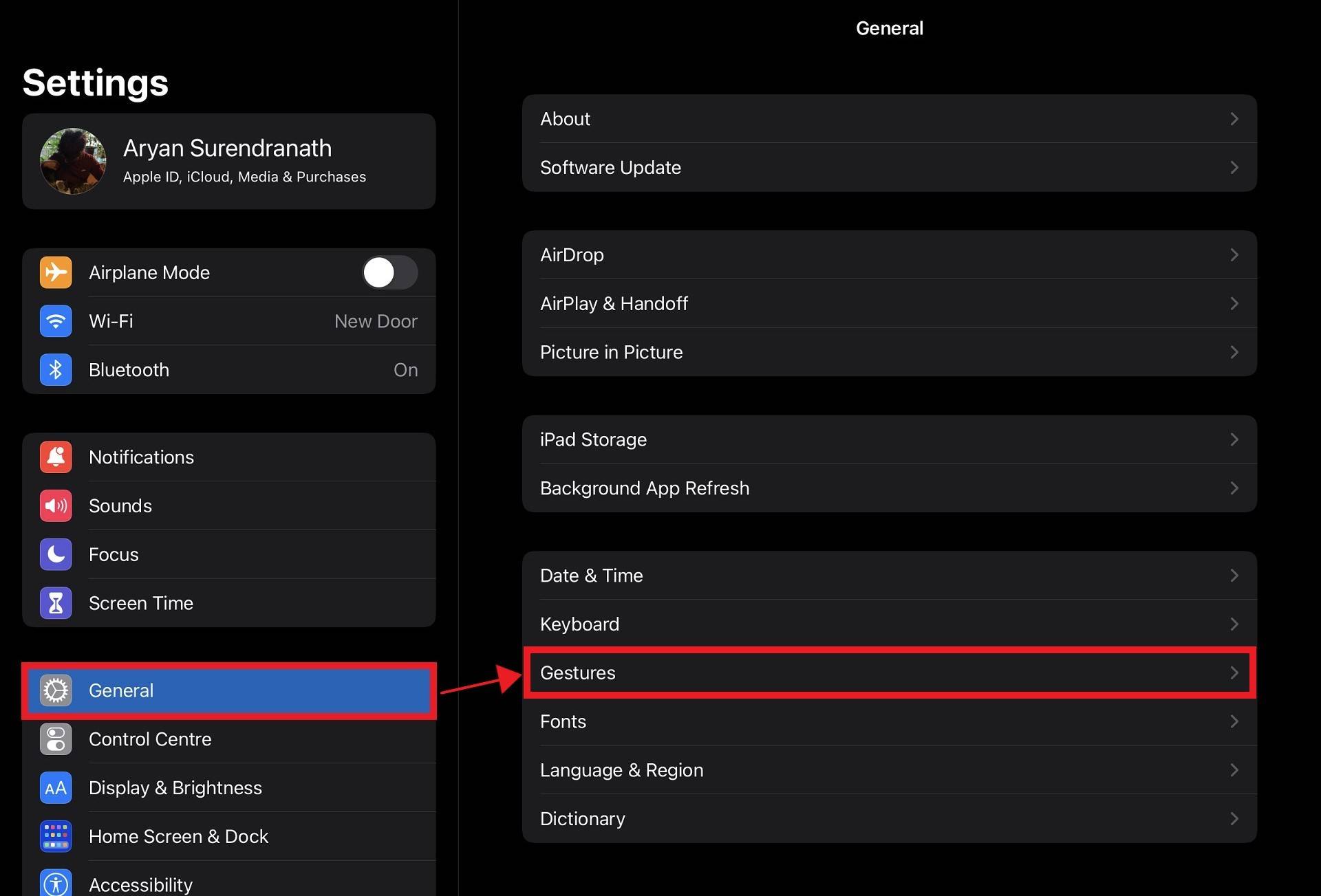
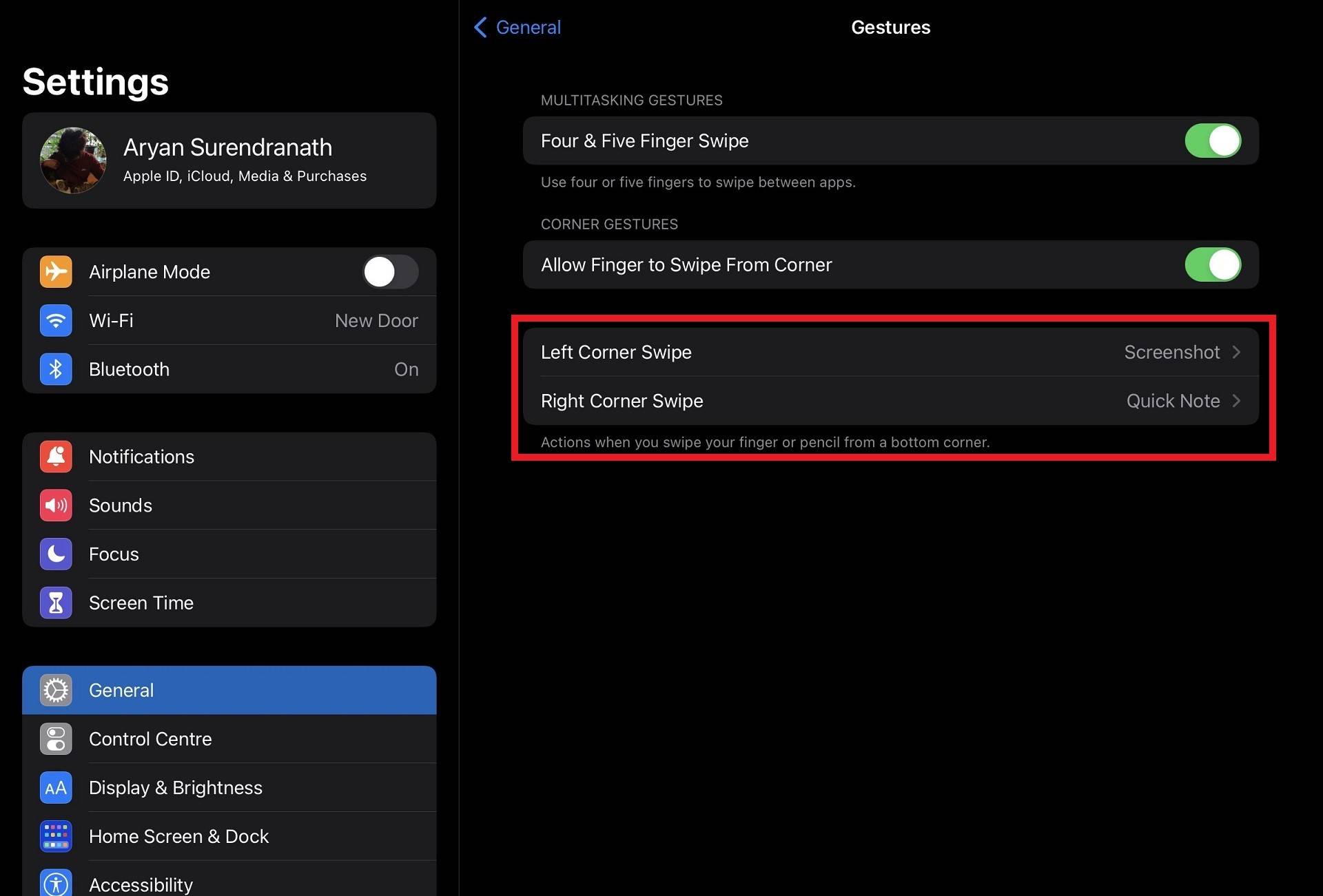
  • Tap on General in the pane on the left.
  • Now, locate Gestures amongst the options available on the right.
  • Next, look for the Left Corner Swipe or Right Corner Swipe options.
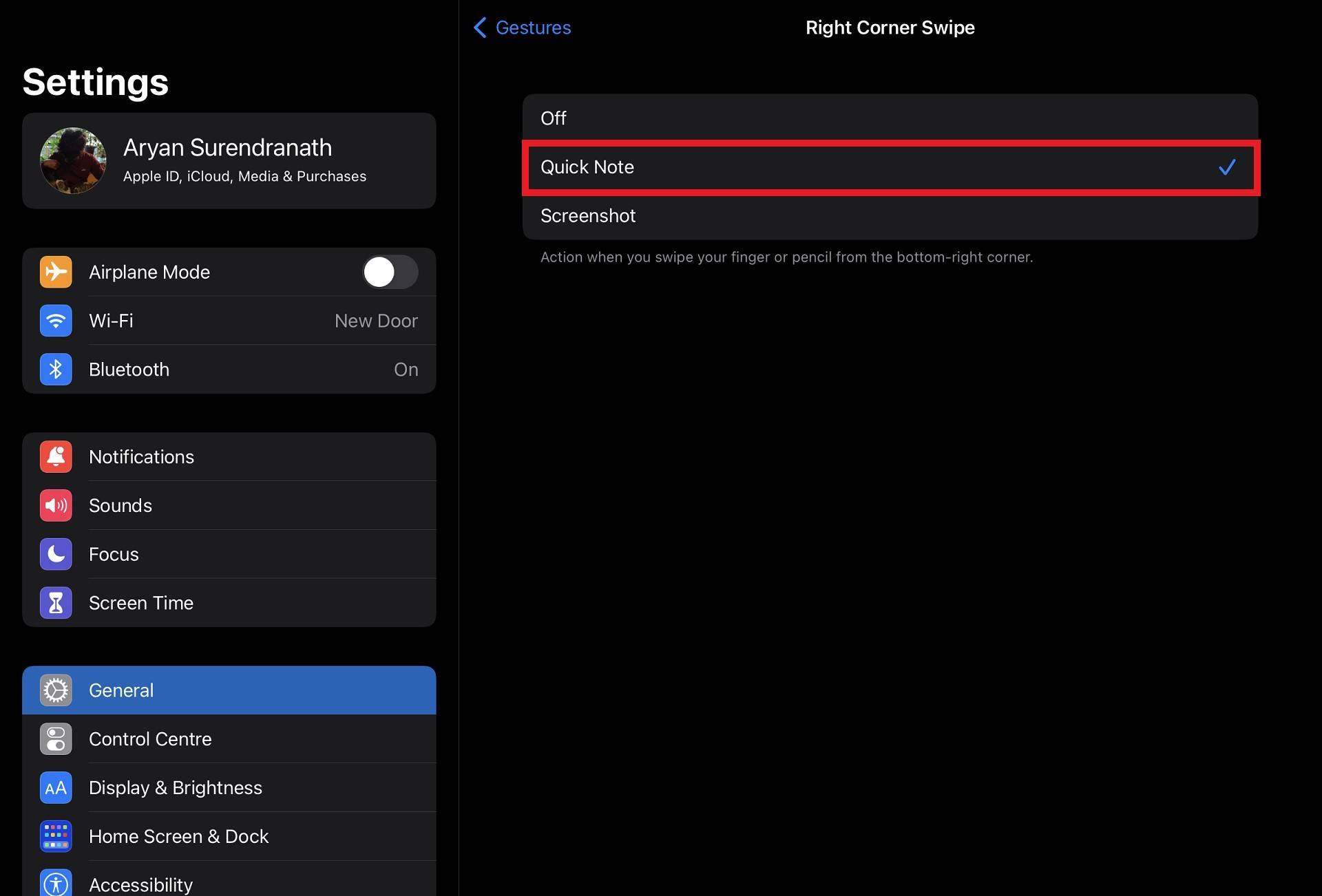
  • Tap on either option and the next screen, and choose Quick Note.

You can now create these little notes with a simple swipe up from either corner — based on your choice — with your finger or Apple Pencil.

Other Ways to Access Quick Notes

With External Keyboard: Open Quick Notes by pressing the Globe Key followed by Q. And if Quick Note is already open, you can create a new note with Command-N.

With Control Centre: Add Quick Note to Control Centre by going into Settings and adding the toggle to the easily accessible panel.

You can locate the Quick Note Control under the More Controls subsection, shown in the images below.


Tips for using Quick Note

Access all Quick Notes

Open the Notes application and tap on the Quick Notes folder to view all your captured notes using this feature. Alternatively, you can also tap on the "four square" icon when using Quick Notes to see all the created pieces.

Add Quick Access Links

Having a Quick Note open in specific supported applications will allow you to create shortcuts, and tapping on these elements will let you seamlessly transition into those windows. We noticed this feature working within Photos and Safari.

In Safari, users can add links to excerpts from a website, whereas in Photos, users can link to the images located in their album.

To do this, open a Quick Note and access any of the above applications.You will then see a prompt appear (marked in Red) within the Quick Note window, which you can tap to create the shortcut.


Supported Models

Quick Note for iPadOS is available on the following iPad models.

  • iPad Pro 12.9-inch (1st generation to 5th Generation)
  • iPad Pro 11-inch (1st generation to 3rd Generation)
  • iPad Pro 10.5-inch
  • iPad Pro 9.7-inch
  • iPad Air (3rd Generation to 5th Generation)
  • iPad mini (5th generation to 6th Generation)
  • iPad (6th Generation to 9th Generation)

iPad Models Available in 2022
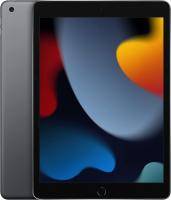
iPad (9th Generation)

The iPad 9th Gen. features refreshed internals and an improved front-facing camera, making it the perfect tablet for kids or seniors in your family who need a device to keep in touch or get school work done with just enough power for gaming.
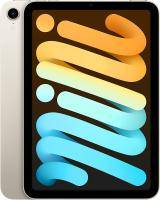
iPad Mini (6th Generation)

The all-new iPad mini features a massive redesign, bringing it in line with the looks of the new iPad Air and iPad Pro. It packs the A15 Bionic, features support for the 2nd Generation Apple Pencil, has Touch ID built into its power button, and implements a USB-C port for wired connectivity.

PBI iPad Air 5th Gen

iPad Air (5th Generation)

iPad Air 5th Gen brings the highly rated M1 processor, 5G connectivity (for cellular models), Center Stage capability, and all-new colors. It starts at $599 for the 64GB WiFi-only model, with an upgrade to 256GB of internal storage available.
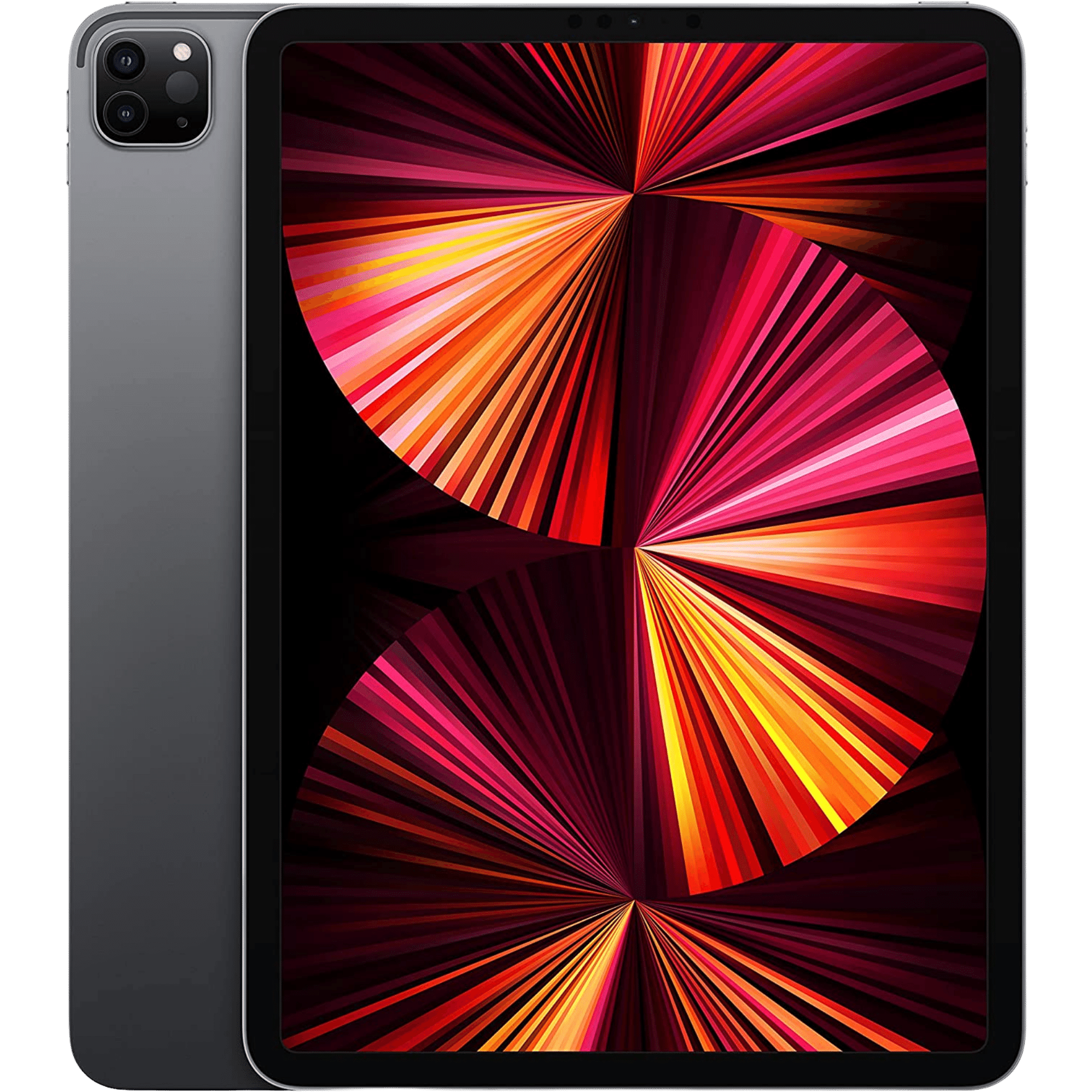
Product Image for iPad Pro 2021 11 inch

iPad Pro 11-inch (2021)

iPad Pro 11-inch is the best of what Apple offers in a smaller form factor. It comes with the M1 Processor and ProMotion display, which work to provide a power-packed user experience that delivers on all fronts, be it media consumption or productivity-based tasks.
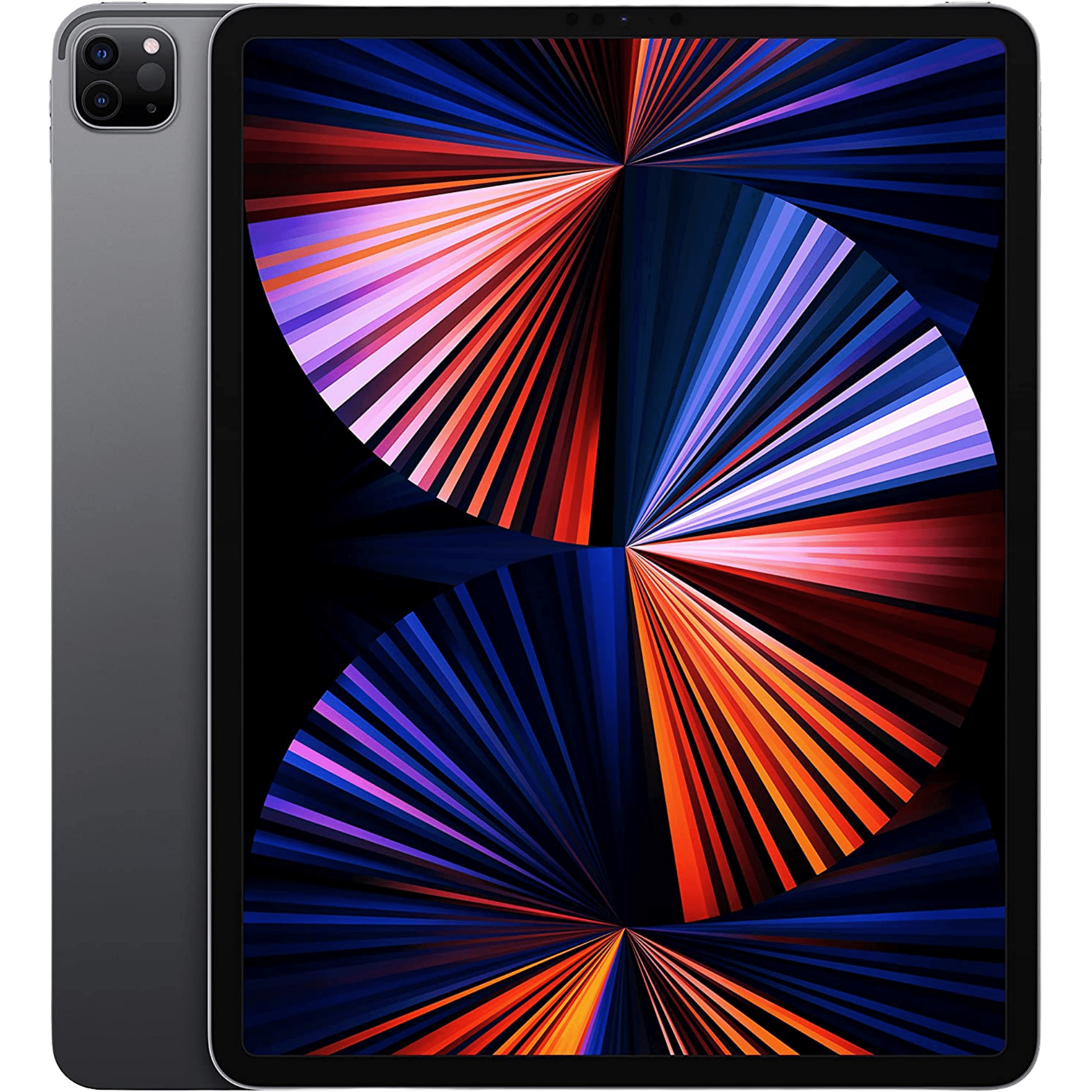
Product Image for iPad Pro 2021 12.9 inch

iPad Pro 12.9-inch (2021)

The 12.9-inch iPad Pro combines the best hardware available in Apple's tablet stable. It comes with the Liquid Retina XDR display with support for ProMotion and is a choice worth looking at for those who need a high brightness panel when on the go.


Adblock test (Why?)


How to use Quick Notes on iPad? - Pocketnow
Read More

MOFT Urban Commuter Set Review - Pocketnow

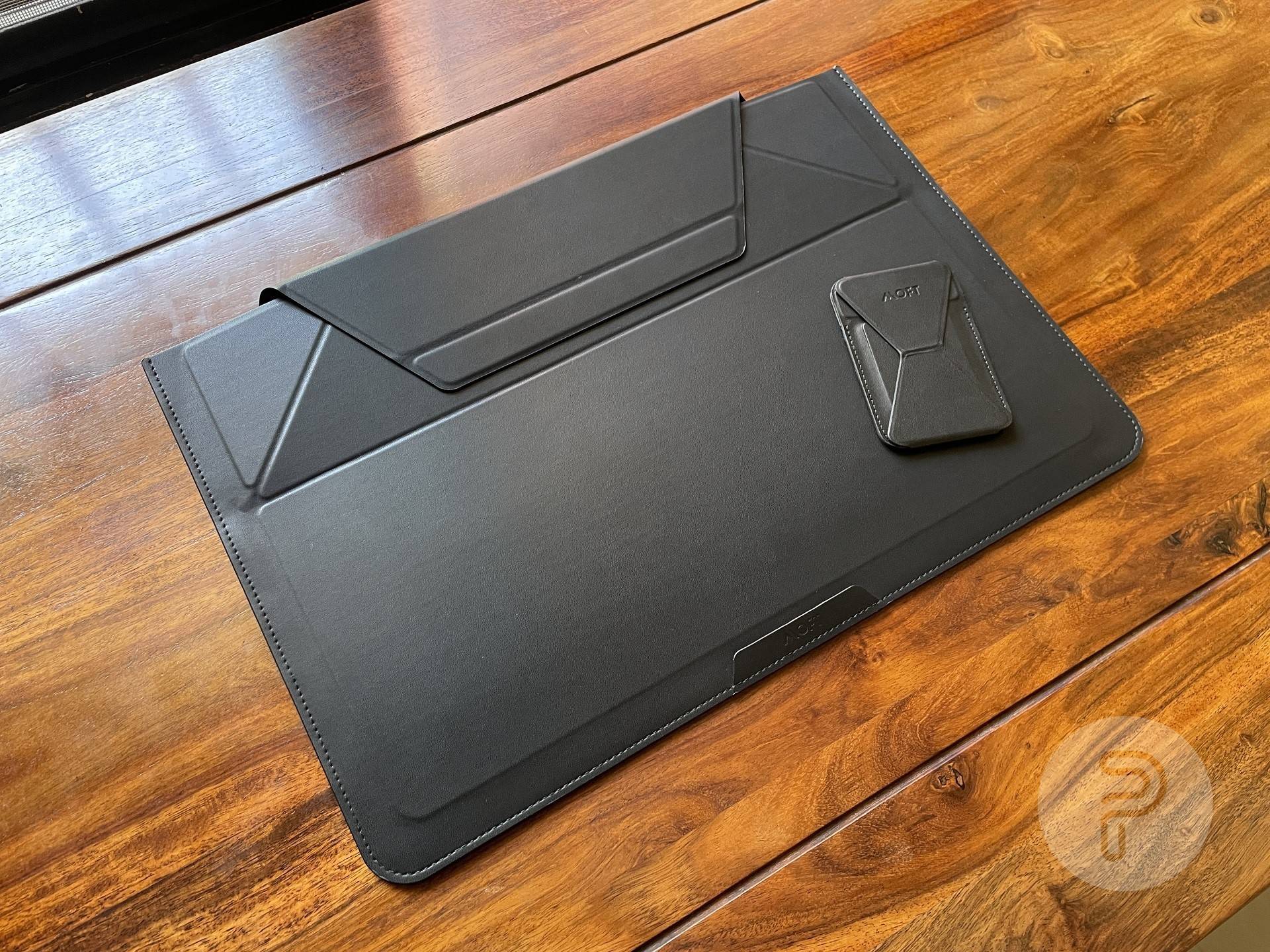
an image of the MOFT Urban Commuter Set's Sleeve and Phone Stand laid flat on the table Source: Aryan Suren for Pocketnow
CONTENTS CLOSE

Convenience is something I bet each of us appreciates, and with lockdowns lifting around the world, trips down to your local coffee shop or library to get work done are bound to become more frequent. And to help you work and interact with your devices when on the go, MOFT offers the Urban Commuter Set. A bundle of its Laptop Carry Sleeve & Snap-On Phone Stand, which aims to elevate your work experience.

And this article goes over my experience using this set of accessories over the last couple of months.

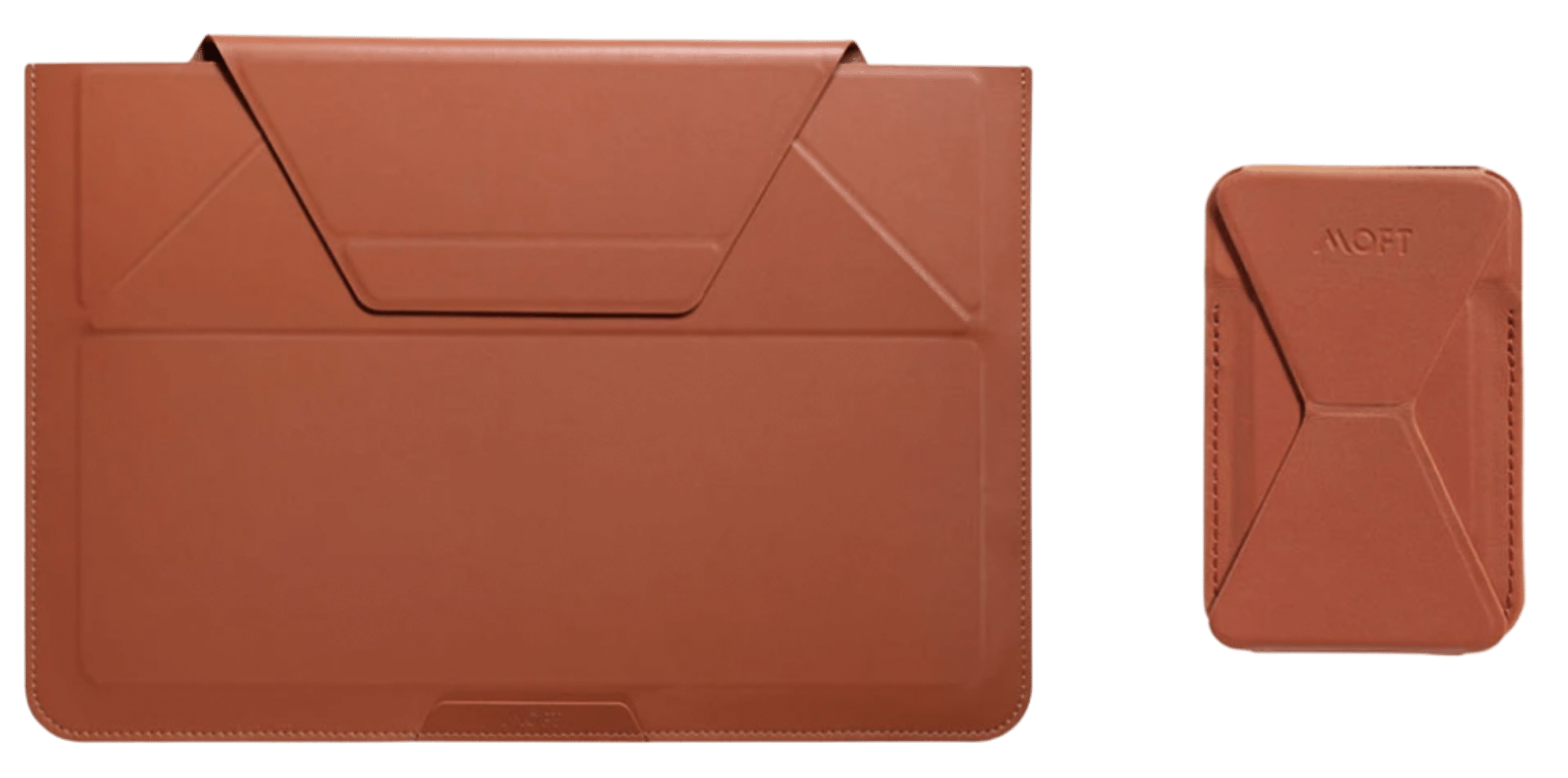
Product Image of MOFT Urban Commuter Set

MOFT Urban Commuter Set

Added Convenience

The MOFT Urban Commuter Set is the perfect set of accessories to have on your person if you often find yourself working in remote settings. The Laptop Carry Sleeve makes it easy to protect and move around while acting as an ergonomic stand when required. On the other hand, the Phone Stand is a convenient little accessory that will help prop your phone at great angles while doubling as a slim wallet.

MOFT Laptop Carry Sleeve

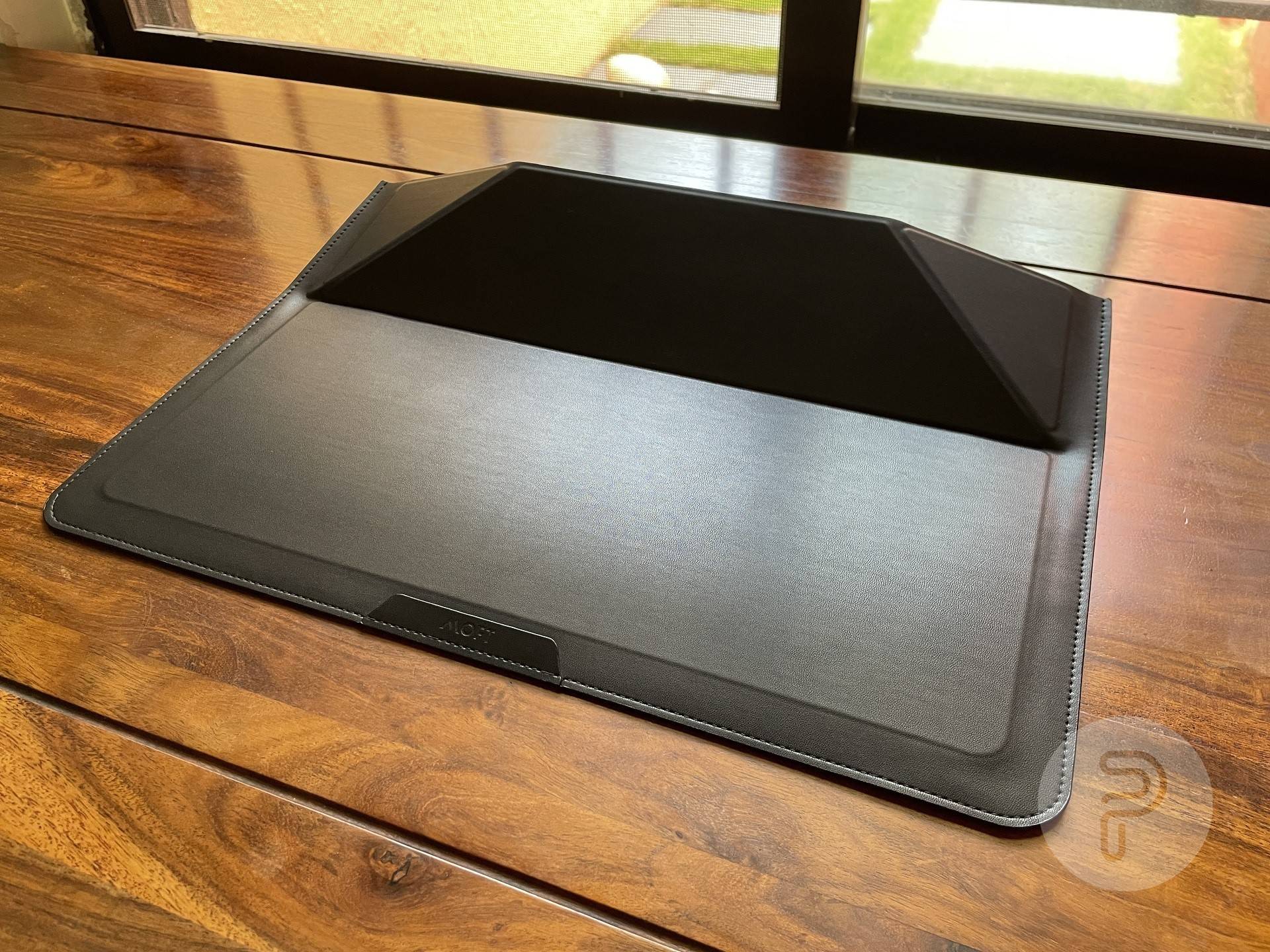
MOFT Laptop Sleeve placed on a table in its 15-degree mode Source: Aryan Suren for Pocketnow

The MOFT Laptop Carry Sleeve uses a vegan leather material for its outer construction. Underneath that layer is a solid piece of recycled material that provides a certain level of rigidity to hold the weight of your device. There are also magnets placed in the closure flap to allow it to snap into place and support the various structure formed by the accessory's unique folding mechanism.

The Laptop Carry Sleeve is available in two sizes, 14-inch and 16-inch, capable of encasing ultrabooks available on the market. I've mentioned the exact inner dimensions in the table below.

Variant Width Length Thickness
14-inch 305mm 215mm 17mm
16-inch 360mm 250 17mm

Unfortunately, because I own a gaming laptop, I can't use the sleeve function well. But, using it as a laptop stand has been a great experience.

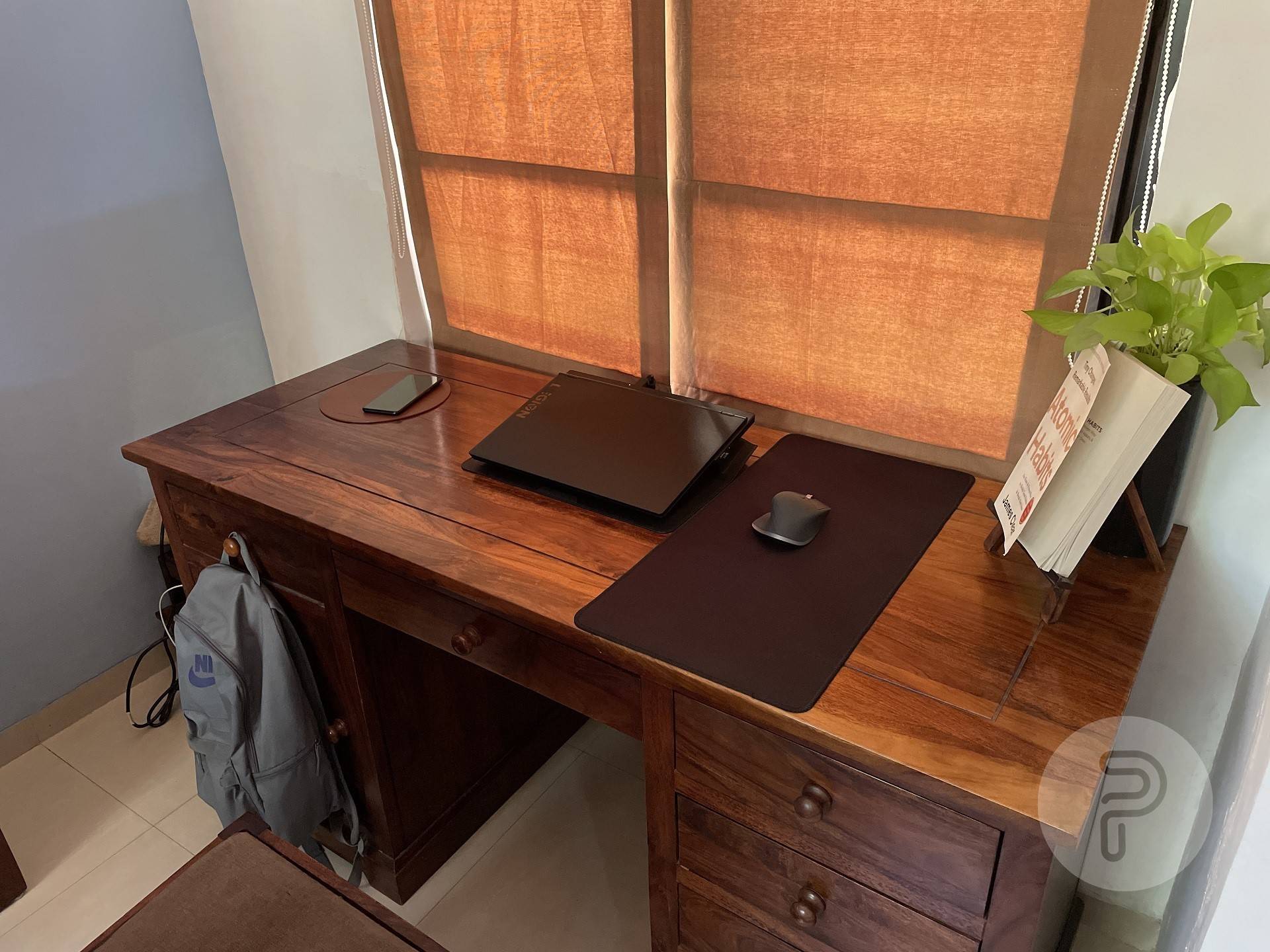
MOFT Laptop Sleeve placed under Legion Y540 Source: Aryan Suren for Pocketnow

The primary advantage it affords is the stable base it provides while I clatter away at the keyboard. Next, because my laptop has its fans on the bottom, the 15-degree angle works as the perfect way to allow air inflow. The Laptop Carry Sleeve also almost disappears under my device, thus providing me with two essential features without making my table look shabby. Also, I didn't find myself using the 25-degree mode much, but it adds much-needed height if you'd like to have your display higher.

MOFT Snap-On Phone Stand

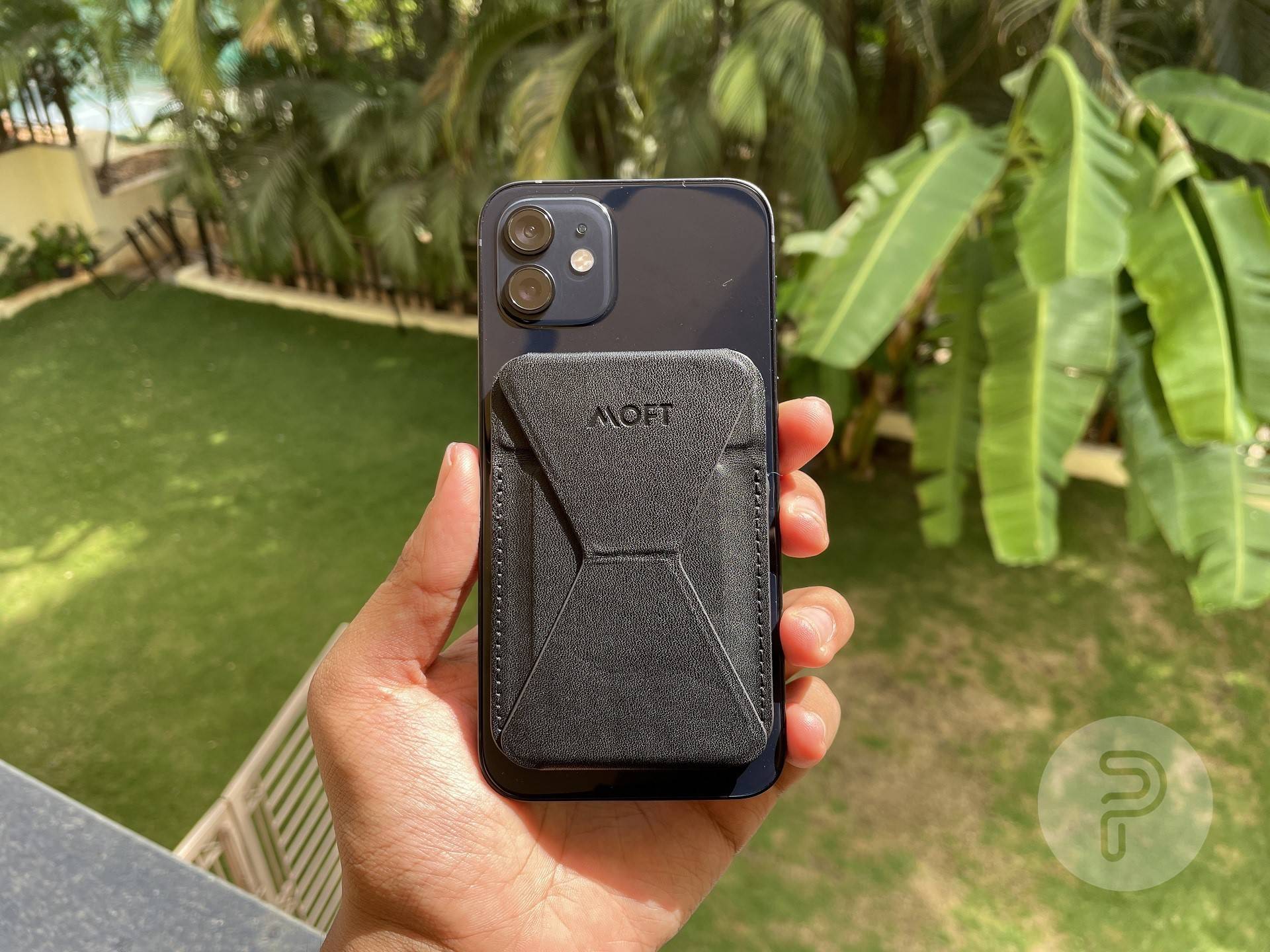
moft snap on phone stand applied on an iPhone 12 via magsafe Source: Aryan Suren for Pocketnow

The next accessory part of the Urban Commuter Set is the Snap-On Phone Stand. MOFT had been making these "invisible" accessories for laptops and smartphones a while before MagSafe Accessories for iPhone came into play. But the introduction of the magnetic array only made this accessory more convenient to use.

The Phone Stand has found itself on the back of my iPhone more often than not. I've enjoyed using it as a propping tool when I need to follow a recipe or watch a show while eating a snack. Each of its Portrait, Landscape, and Landscape at a Height (which MOFT calls Video Conferencing Mode) work great.

The camera angle provided by each of these modes is lower — like the Legion Y540's low-sitting front-facing webcam — but it's better than looking for a stand or propping mechanism.

Moving on to the wallet functionality, the ability to store cards was a bonus for me — as I have a slim wallet with sentimental value that isn't leaving my pocket. But I could get three cards to fit in there without much effort, though if you want to store a fourth, there's isn't much room available. I also believe getting cards in and out will be easier if you keep just two.


Final Thoughts

Overall, while the accessories are on the pricier side, the Urban Commuter Set by MOFT is a bundle worth buying if you need elegant solutions that work well. The set can be the perfect gift for your friends and family who might be returning to work soon!

In my experience, the use of a Vegan Leather coating allows one to keep the accessory clean and leaves it looking premium after months of use. Drawing your attention back to the Laptop Carry Sleeve, it allowed me to place my laptop on a surface that was always dust-free and didn't collect any sort of lint or particles. This meant the fans at the base mostly pulled in clean air, reducing the effort I'd have to put in while cleaning my laptop.

And speaking of the Phone Stand, while the accessory has its learning curve — to understand where to unfold it without pulling it off your phone — its various angles make it a convenient accessory that one may call a must-have. It even adds a little heft that improves how my iPhone 12 feels in my hand but keep this in mind if you hope to keep your phone feeling light.

You can also purchase the accessories separately if you'd rather use one more than the other.

Product Image of MOFT Urban Commuter Set

MOFT Urban Commuter Set

Added Convenience

The MOFT Urban Commuter Set is the perfect set of accessories to have on your person if you often find yourself working in remote settings. The Laptop Carry Sleeve makes it easy to protect and move around while acting as an ergonomic stand when required. On the other hand, the Phone Stand is a convenient little accessory that will help prop your phone at great angles while doubling as a slim wallet.

Adblock test (Why?)


MOFT Urban Commuter Set Review - Pocketnow
Read More
Saturday, June 4, 2022

Enjoy 10% on WearGraphene's graphene-enhanced jacket - Graphene-Info

A couple of months ago WearGraphene sent us one of their Gamma graphene-enhanced jacket. We posted our review in early May, and today the company sent us a custom 10% discount coupon (GRAPHENE10) to share with our readers. You can find out more, and order the graphene jacket here.

The jacket uses graphene in two ways. Graphene is infused into the coat, with an aim to achieve thermo-regulation, and the jacket also includes graphene heating elements, in the pockets, and in the back. Read our full review here.

We think this is an excellent jacket. You can order the graphene jacket here, be sure to use the 10% discount coupon GRAPHENE10.

Adblock test (Why?)


Enjoy 10% on WearGraphene's graphene-enhanced jacket - Graphene-Info
Read More

Google Changed How It Filters Your Skin: All About the New 10-Tone Scale - CNET

What's happening

Google has adopted a more diverse skin tone scale to reshape its artificial intelligence systems.

Why it matters

The new 10-shade scale could reduce racial bias and improve skin tone representation across Google's popular services.

In mid-May, Google announced a partnership with Ellis Monk, an associate professor at Harvard, unveiling a more inclusive skin tone scale to better train Google's artificial intelligence systems and improve racial and color representation in its products.

Using the more diverse 10-shade scale is designed to allow Google's services to better see and understand images that feature people with darker skin tones. It's a response to problems in the system that Google and other companies have used to classify skin tones for people of color.

Read more: Google Adopts 10-Step Skin Tone Scale So Its AI Will Understand Diversity

You can see one example of this AI technology at work in the US -- the option to refine makeup-related queries by skin tone within Google search. Separately, the company also added filters tailored to darker skin in Google Photos. And that's just the start.

As Google broadens its use of the Monk Skin Tone Scale to new services and other parts of the world, there's a lot to learn about Google. Here's what you need to know about how it's trying to improve skin tone representation and how Google got there.

Now playing: Watch this: Google's Monk Skin Tone Scale: What Is It?

6:58

Photography can be biased toward lighter skin tones

In the 1950s Kodak dominated the film industry, selling the majority of color film in the US. If you used Kodak film to shoot, you would have to go to a Kodak photo lab to get it developed and printed, where you would inevitably buy more Kodak film to use.

Eventually, the US federal government stepped in and broke up its monopoly, and so Kodak developed a small printer that any film lab across the country could use in their stores to print Kodak film. As part of these kits, Kodak would also supply labs with reference prints to help film lab employees calibrate colors, shadows and light. These references were called Shirley cards.

These Shirley cards featured mostly brunette white women, and excluded pretty much everyone else. At this time, lighter skin was the chemical baseline for photo technology, and so these cards showcased that. As a result, darker skin tones were neglected, and so they were harder to expose properly, which helped to perpetuate the myth that darker skin is more difficult to photograph than lighter skin.

"Shirley" cards showing white women

Shirley Cards were named after Shirley Page, a former Kodak employee who was the first person featured on these color reference cards. Eventually, more models were introduced -- also primarily brunette and white.

99% Invisible

Google's Real Tone feature on the Pixel 6

Now, our digital smartphones have largely superseded analog film. Yet, the racial biases that existed back then are still around. Even in your camera app, lighter skin tones are still favored -- computational photography on smartphones is known to still overexpose and desaturate darker skin.

And that's why last year Google released its first AI-powered tool to help combat the racial biases in photography. Real Tone, exclusive for the Pixel 6 and Pixel 6 Pro, improves how darker skin tones show up in photos and videos. Google worked with a team of diverse image experts to break down the process of properly shooting darker skin tones, and better train the decision-making algorithms used on their phones.

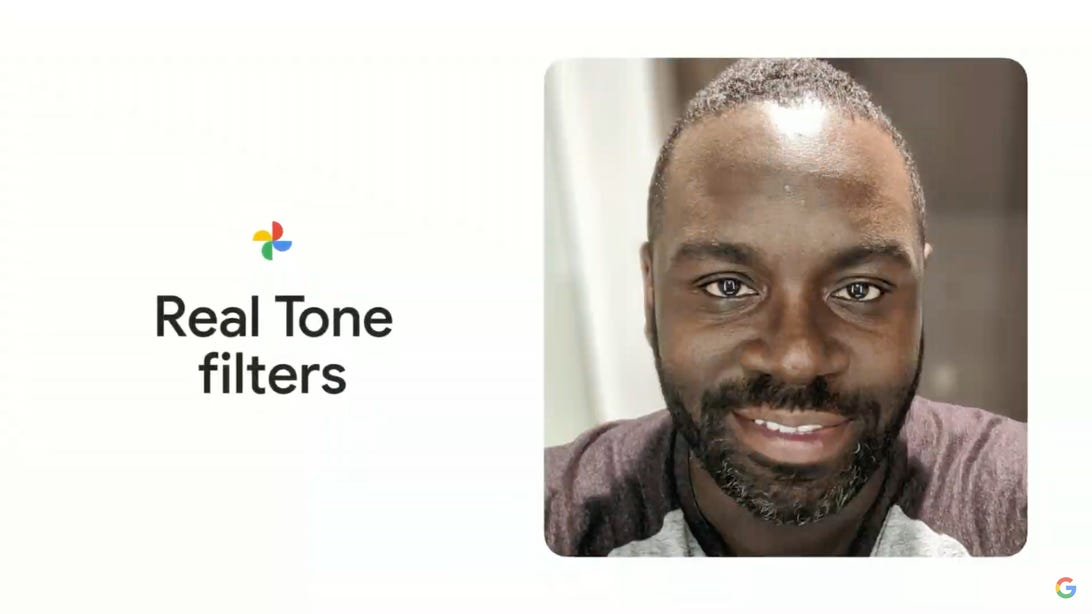
A Black man smiling next to the words Real Tone filters

The Real Tone filters improve how darker skin tones are portrayed in photos.

Google

For Real Tone, Google focused on six areas to improve the camera for the Pixel phones, to make it more inclusive and create more authentic, accurate portraits for darker skin tones:

  • Face detection: The camera app is better at detecting faces with darker skin tones.
  • Auto-white balance: Darker skin tones are shown with more nuanced color temperature.
  • Auto-exposure: When adjusting exposure, darker skin tones won't appear too bright or too dark.
  • Stray light: This reduces negative effects of stray light, which can make darker skin tones appear washed out.
  • Face Unblur: Cut down image blur for people with darker skin tones in low light.
  • Google Photos: Google Photos' auto-enhance feature works better for darker skin tones.

What is the Monk Skin Tone Scale?

During Google I/O 2022, Google announced that it's begun incorporating the Monk Skin Tone Scale into services, such as Google Search and Google Photos. The plan is to use the Monk Skin Tone Scale to help address the skin tone bias by better representing historically underrepresented skin tones.

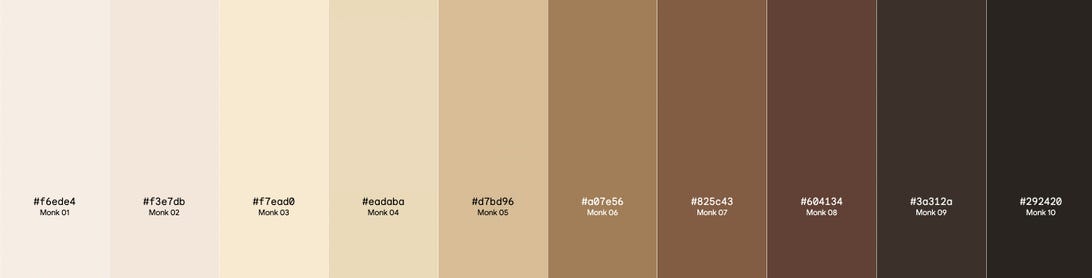
The Monk Skin Tone Scale is a newer approach to categorize a more diverse range of skin tones. Google is using it during product development to create more representative datasets for training its AI models so they are more nuanced at detecting darker skin tones. 

Monk Skin Tone Scale 10 categories light to dark from left to right

The Monk Skin Tone Scale.

Google

Ellis Monk, a Harvard associate professor in sociology, developed the skin tone scale a decade ago, and Google adapted it for its own digital use. Monk has extensively researched how technology intersects with race and ethnicity, in particular areas of artificial intelligence, machine learning and computer vision.

At Google, the 10-shade Monk Skin Tone Scale replaces the Fitzpatrick scale, a dermatologist-created system designed for reading ultraviolet radiation exposure. The Fitzpatrick scale has only got six skin tones, and most of them are for lighter skin. Google and other tech companies have relied on the Fitzpatrick scale for years to classify skin tones for their algorithms and to assess how well those algorithms are working.

How is the Monk Skin Tone Scale being used?

For now, Google is using the Monk Skin Tone Scale to improve skin representation in two of its popular services: Google Search and Google Photos.

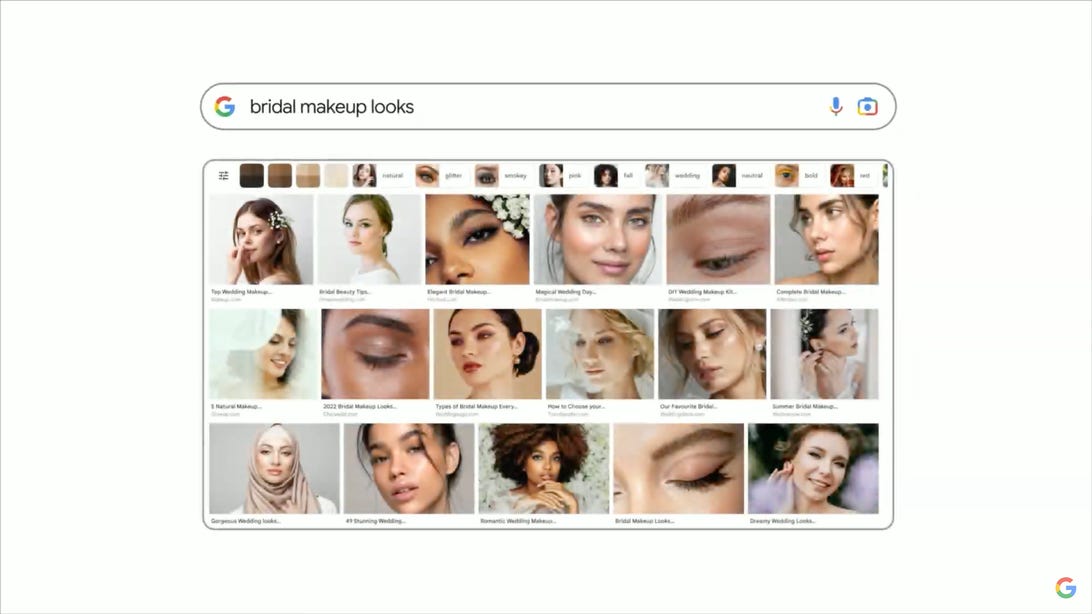
In Search, the Monk Skin Tone Scale will help find and present more relevant results for those with darker skin tones. For example, if you search for a makeup-related query, Google will present color chips and a variety of faces that let you narrow down your search results based on skin tone. That should help you find something like a "winged eyeliner tutorial" photo for darker skin tones.

Thumbnails of eyelids from makeup tutorials

You'll be able to filter photos by skin tone in Google Search.

Google

Google also used the Monk Skin Tone Scale to improve Google Photos with a series of Real Tone filters designed specifically for darker skin tones. These filters were created with the help of image creators who have experience in accurately depicting darker skin tones in photographs, and are now available for use in the Google Photos app for iOS, Android and the web. If you go to the Filters tab in the Google Photos editor, you'll see new choices like Desert, Honey, Isla and Playa.

How else will Google use the new skin color scale?

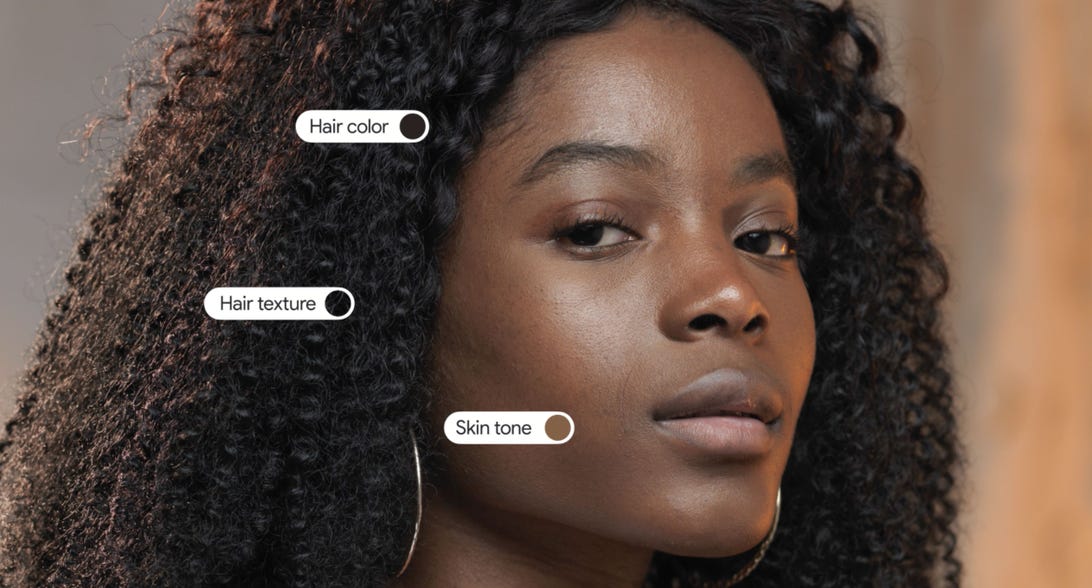
Google hopes others will incorporate the Monk Skin Tone Scale as they label photos that appear on the web for image attributes like hair color and texture. Creators, brands and publishers can use these metadata options on their images and other web material so that search engines can better recognize them and surface them in searches when it's relevant.

Google Skin Tone schema illustration of a Black woman's face with labels on her hair and cheek

You'll be able to filter results by hair textures and colors too.

Google

Google released its Monk Skin Tone Scale classification system under liberal licensing terms, open to any researcher or company. Google hopes other tech companies will incorporate the scale into their own development processes.

And Google will continue working with Monk on improving the scale as well, including with tests to validate its use in other countries like Mexico, India, Nigeria and Brazil.

Adblock test (Why?)


Google Changed How It Filters Your Skin: All About the New 10-Tone Scale - CNET
Read More

You can now use Google Play Points to pay for Apps – Here’s how - 9to5Google

Rewards programs can vary in usefulness, and some aren’t worth using at all. Google Play Points has some hidden usefulness that can fly under the radar – unless you’re looking for it. This guide will take you through how to use Google Play Points to redeem and pay for things like apps and perks.

Table of contents

Earning Google Play Points

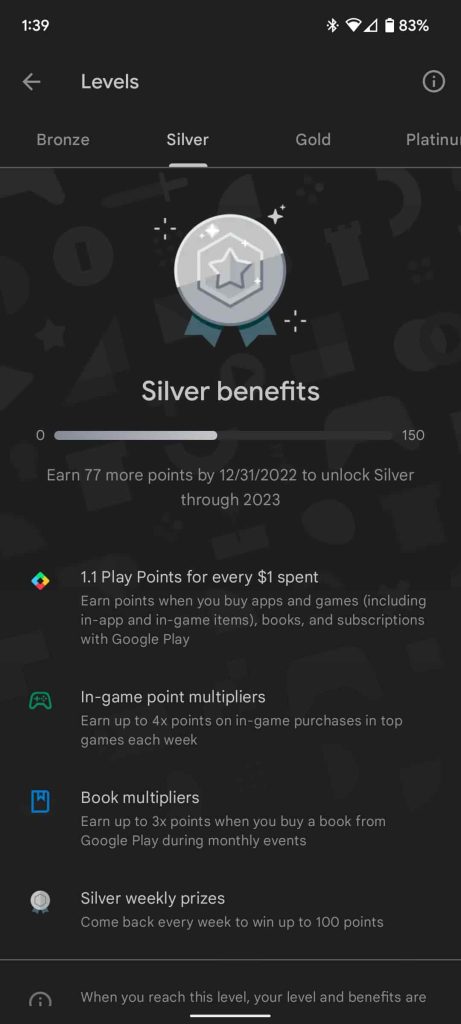
Earning Google Play Points is easy. As it happens, every time you purchase something from the Google Play Store, you end up getting a certain number of points. The amount of points you receive from a purchase is directly related to how much you spent and what level you are at as Google Play Points user. For instance, at the lowest tier – Bronze – every dollar you spend gets you one point in return.

This also applies to subscriptions as well. For instance, if you’re a Google One member, you can earn points on the monthly purchases you make every month. Suppose you subscribe to the 100GB tier in Google One. That becomes two points every month for the $1.99 you spend on the subscription. This can even apply to subscriptions you purchase through Google Play. Monthly app fees will have a point value attached to them every time you renew automatically. This is the case as long as the subscription is obtained through Google Play’s checkout.

How to level up

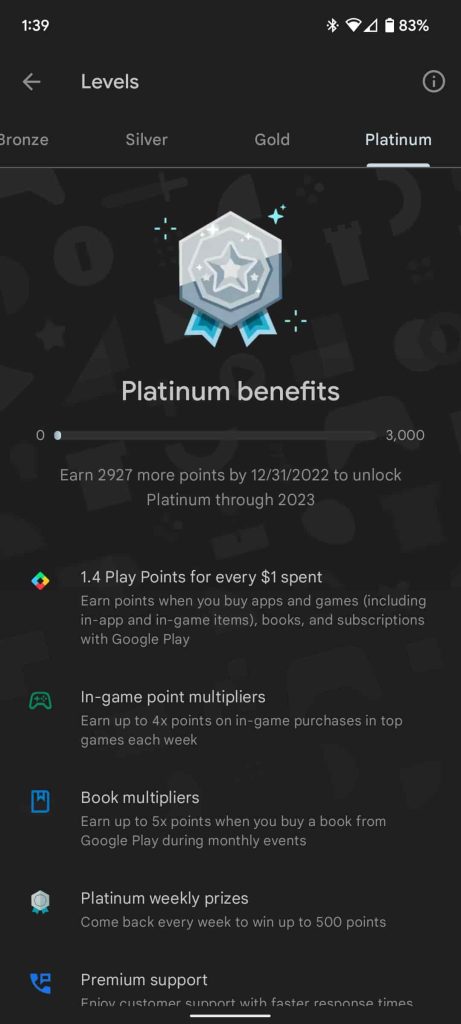
As you get more points, you can move up in tier. The higher the tier you get to, the more points you’ll earn per purchase. Unfortunately, it’s quite difficult to move up a tier unless you spend a lot on apps, games, movies, and so on. Even if you do happen to move up, the benefits are minimal and don’t have a huge bearing on your earnings. At the highest tier – Platinum – you only earn 1.4 points for every dollar spent. That being said, there are some rare circumstances where higher tiers pay off.

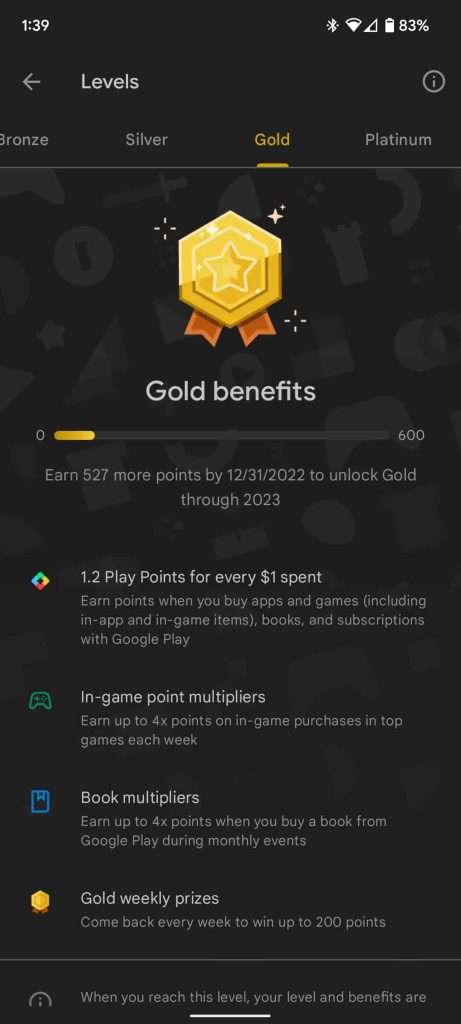
Here are all the tiers and benefits:

Level Points required Earning rate per dollar
Bronze 0 – 149 1 point
Silver 150 – 599 1.1 points
Gold 600 – 2,999 1.2 points
Platinum 3,000 and up 1.4 points

Do Google Play Points expire?

Ye, Google Play Points do expire. After earning points, a new expiration date is placed on your total. If a certain amount of time goes by before you use your points, that credit is no longer valid. Of course, as long as you keep earning points, the expiration date seems to keep extending out further and further. The Google Play Store holds a weekly giveaway where you can earn points pretty easily. Utilizing this will ensure your points don’t expire.

Using/redeeming Google Play Points

Using or redeeming Google Play Points is pretty easy to do. In fact, there are a couple of ways you can do it. One method is live now, while the other is supposedly coming in the near future.

Redeeming points via the Google Play Store

In the Google Play Store, claiming points takes a couple of different forms. You can either claim Google Play Credits, which is essentially a virtual gift card. For every dollar you claim, you have to use 100 points. If you don’t want to do that, you can also use your points to claim certain items in-game. Once you use points to claim an item, it’ll apply to your game account, and the next time you play, you’ll see the item you purchased.

Here’s how to claim credit or items:

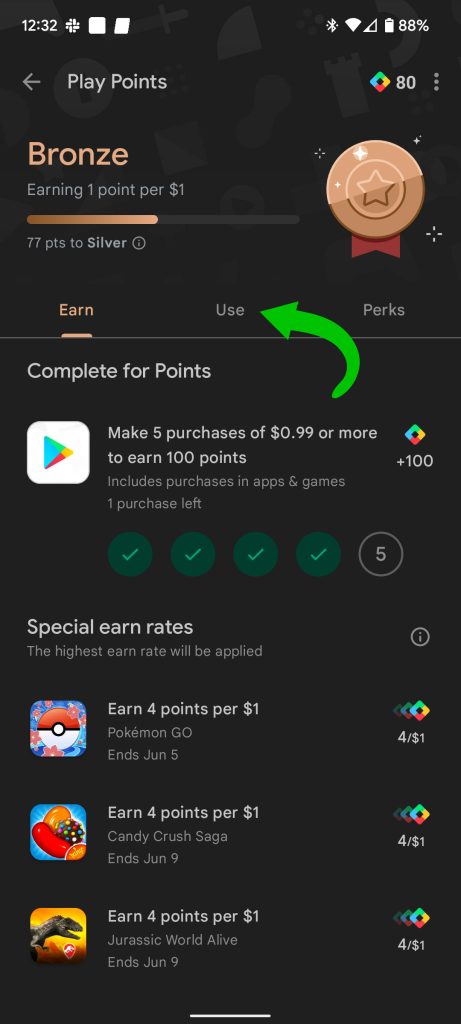
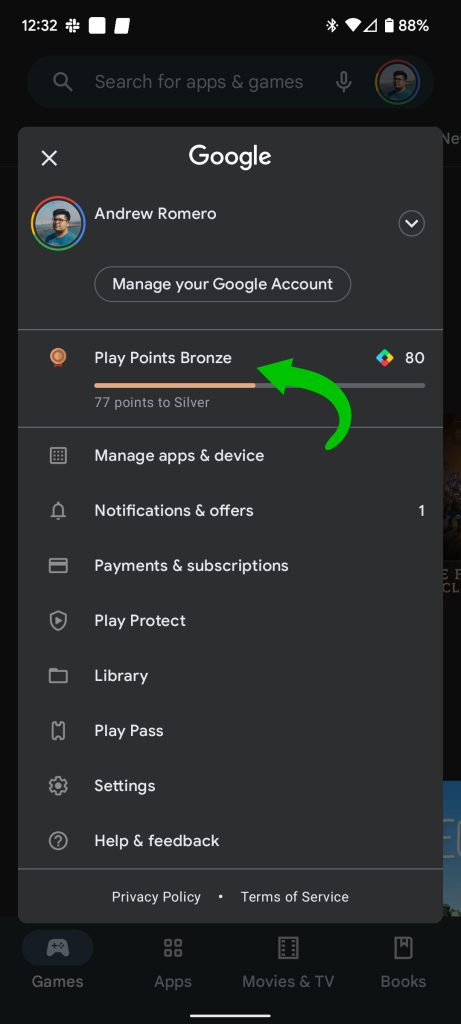
  1. On your Android device, head to the Google Play Store.
  2. Tap your profile picture in the upper-right corner.
  3. There will be a small section with the phrase Play Points. Tap it.
    • Tip: If you want to see your Play Points balance, you can just look here.
  4. Tap Use under your level.
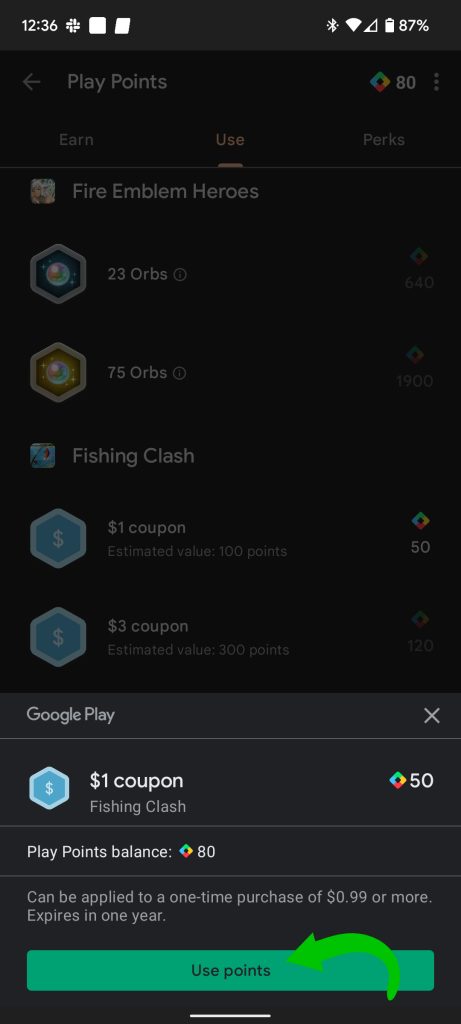
  5. To claim something, just make sure you have the points and tap it.
    • Note: The price will be fully visible if you have enough for the item or credit. If you don’t, it will be mostly opaque.
  6. Tap Use points.

Alternatively, you can also use your points to make donations to charity, right from Google Play. To do this, simply scroll to the top and find the button marked Donations. Once you tap it, the page will only show charities you can donate to. The value on these is higher, meaning your points go further per dollar.

Redeeming points at the time of purchase

A new way to redeem points will be coming in the near future. This method will allow users to use points directly from app checkout, rather than having to separately claim and use them in the Google Play Store. For example, if you’re playing a game and want to buy a bonus item within the game, you can do so like normal. Once you get to the checkout page, you’ll be able to hit Use points and redeem the Google Play Points you already have. You never have to leave the app. You can also use Play Points when you purchase an app from the Play Store for the first time.

Google plans on rolling out this new feature “in the coming weeks.” As long as Play Points are already available where you are, you’re likely to see this addition come your way soon.

No matter how you earn or claim your Google Play Points, they can be beneficial in some instances. In our experience, the best way to use them is to save them up as long as possible and get cool discounted items or apps. While Google Play Points isn’t exactly free money, it sure is better than paying for apps and games at full price.

More on Google Play Store:


Check out 9to5Google on YouTube for more news:

Adblock test (Why?)


You can now use Google Play Points to pay for Apps – Here’s how - 9to5Google
Read More

Dear Lina, – The Brooklyn Rail - Brooklyn Rail

Goethe’s “To Lina” commands that the letters of the page, black on white, be not read but breathed so that our hearts “now can break.” What...